GCP Setup
GCP support is in early access
GCP discovery covers 29 services today (Compute Engine VMs, managed instance groups, GKE clusters, Cloud Run, Cloud Functions, Cloud Scheduler, Cloud Tasks, Pub/Sub topics & subscriptions, Cloud Storage, persistent disks, Filestore, Artifact Registry, BigQuery, Bigtable, Firestore, Cloud SQL, Memorystore, VPC networks, subnets, Cloud NAT, firewall rules, load balancers, Cloud DNS, Cloud KMS keyrings, Secret Manager, IAM service accounts, and more). Full parity with the AWS catalogue is on the roadmap.
LightPane connects to your GCP project using Workload Identity Federation (WIF) — the Google-recommended approach for cross-cloud access. No secrets are exchanged or stored. LightPane's AWS Lambda authenticates directly to your GCP project using its own AWS credentials and exchanges them for short-lived (1-hour) GCP access tokens at request time.
A service account key option is available as a fallback for environments where WIF can't be used.
What you'll need
- A GCP project you can manage (you'll need Owner or Project IAM Admin to create a Workload Identity Pool and grant IAM roles).
- 5-10 minutes in Cloud Shell.
- The ability to copy two values from GCP into your LightPane profile:
the Project ID (e.g.
my-project-123) and the WIF Credential Configuration JSON the script generates.
If you don't have a GCP project yet, create one at console.cloud.google.com — the GCP Free Tier covers everything LightPane needs to read.
How it works
- You create a Workload Identity Pool in your GCP project that trusts
the LightPane AWS account (
236353235295). - You create a service account with the built-in Viewer role.
- You allow the AWS-federated identity to impersonate that service account.
- LightPane's Lambda uses its AWS credentials to obtain short-lived (1-hour) GCP access tokens via Security Token Service.
- No private keys or long-lived credentials are ever exchanged or stored on either side.
What can be accessed
The Viewer role provides read-only access to resource configuration in your project:
- Compute Engine VMs, instance groups, GKE clusters, Cloud Run services, Cloud Functions
- Cloud Storage buckets, persistent disks, Filestore (configuration only — never the objects, blobs, or file contents)
- BigQuery datasets, Bigtable instances, Firestore databases, Cloud SQL instances, Memorystore (configuration only — never row contents)
- VPC networks, subnets, firewall rules, Cloud NAT, load balancers, Cloud DNS zones
- IAM service accounts, Cloud KMS keyrings, Secret Manager metadata
- Cloud Scheduler jobs, Cloud Tasks queues, Pub/Sub topics & subscriptions
What CANNOT be accessed
- Cannot modify, create, or delete any resource
- Cannot read storage object data, BigQuery row contents, or Cloud SQL row contents (unless you deliberately connect a billing export for cost data — a separate, dataset-scoped grant you add yourself; see Cost data below)
- Cannot read Secret Manager secret values (only that they exist and their metadata)
- Cannot decrypt with Cloud KMS keys
- Cannot perform any write or management operation
- Cannot access resources in any project other than the one you ran the script against
Step 1: Open the setup dialogue in LightPane
- Sign in to app.lightpane.io.
- Go to Cloud accounts in the top nav.
- Click the GCP tab, then Link new GCP project.
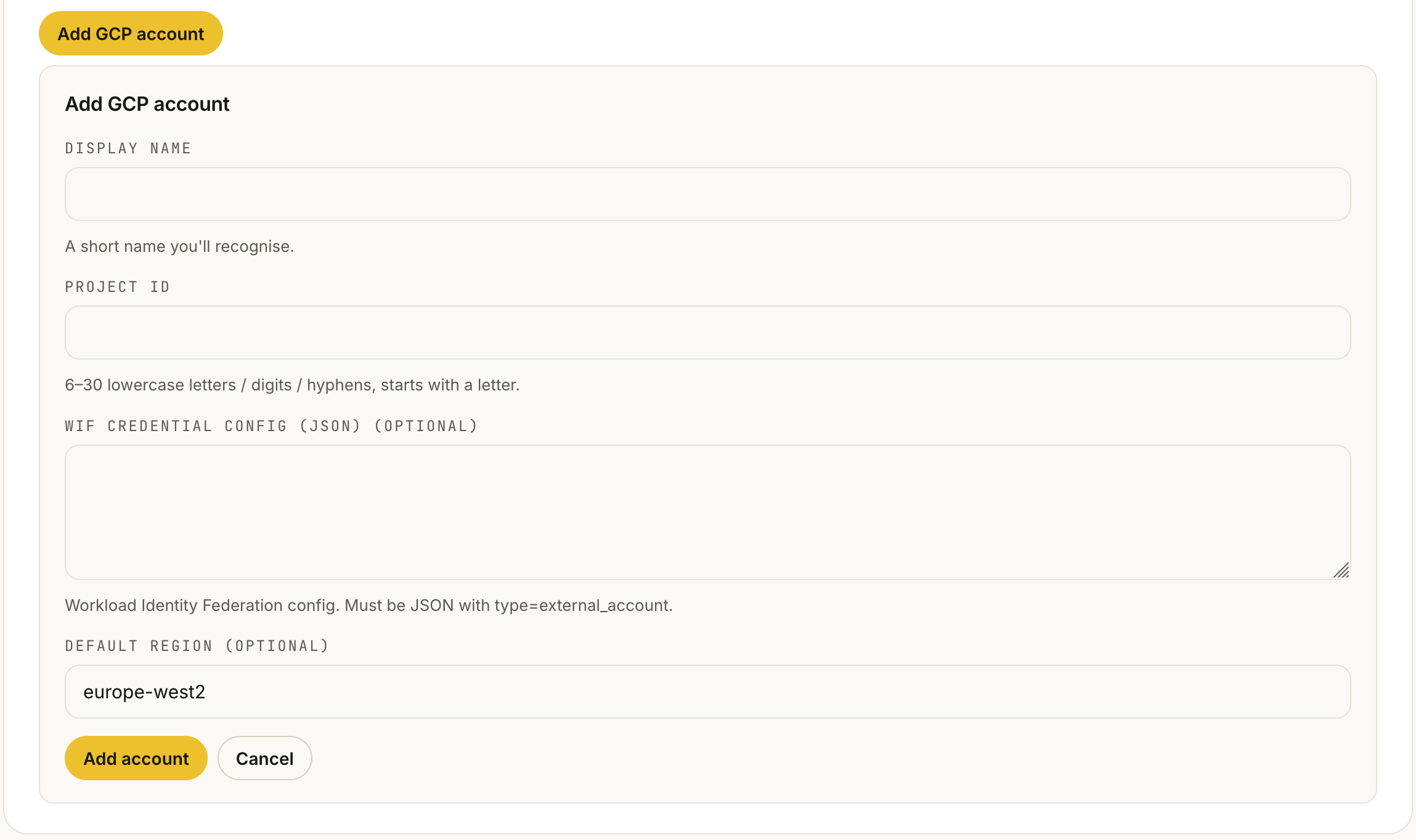
- You'll see a dialogue with the Cloud Shell setup script and two empty fields: Project ID and WIF Credential Configuration. Leave this open in a tab — you'll come back to it in Step 4.
Step 2: Open Cloud Shell in your GCP project
- Sign in to the GCP console.
- Make sure the project selector (top of the page, next to the "Google Cloud" logo) shows the project you want LightPane to read. If not, click it and switch to the correct project.

- Click the Activate Cloud Shell icon in the top-right toolbar
(it looks like a
>_terminal prompt). A Cloud Shell session opens at the bottom of the page.

Why Cloud Shell?
Cloud Shell runs as your user, with gcloud pre-authenticated and
the active project pre-selected. The setup script just works
without any prior CLI configuration. You can also run the same
script from a local terminal if gcloud is installed and logged
in (gcloud auth login), but Cloud Shell is the shortest path.
Step 3: Paste and run the setup script
Copy the entire script from the LightPane dialogue (Step 1) and paste
it into Cloud Shell. The script creates a Workload Identity Pool, an
AWS provider on the pool, a service account named lightpane-reader,
the IAM bindings, and then prints the credential config JSON you'll
need in Step 4.
The script is reproduced here for reference:
# 0. Variables — LIGHTPANE_AWS_ACCOUNT is the LightPane platform's
#    AWS account ID (236353235295). Don't change it unless support
#    has told you to.
export PROJECT_ID=$(gcloud config get-value project)
export PROJECT_NUMBER=$(gcloud projects describe $PROJECT_ID --format='value(projectNumber)')
export LIGHTPANE_AWS_ACCOUNT="236353235295"

# 1. Enable the required APIs
gcloud services enable \
  iamcredentials.googleapis.com \
  iam.googleapis.com \
  cloudresourcemanager.googleapis.com \
  sts.googleapis.com

# 2. Create a Workload Identity Pool
gcloud iam workload-identity-pools create lightpane-pool \
  --location="global" \
  --display-name="LightPane Discovery"

# 3. Add an AWS provider with an EXPLICIT attribute mapping.
#    Two attributes are mapped:
#      * attribute.aws_account = the AWS account the identity came
#        from. Used in step 6 alongside aws_role.
#      * attribute.aws_role    = the IAM role name extracted from the
#        STS ARN (everything between `assumed-role/` and the next `/`).
#        This is what lets step 6 restrict impersonation to specific
#        LightPane Lambda execution roles rather than the whole
#        LightPane platform AWS account.
#    Recent gcloud versions no longer populate a default mapping
#    automatically — without this `--attribute-mapping` arg the
#    pool would accept the AWS identity but no principalSet binding
#    would ever resolve (you'd get `Permission iam.serviceAccounts.
#    getAccessToken denied` from impersonation).
gcloud iam workload-identity-pools providers create-aws lightpane-aws \
  --location="global" \
  --workload-identity-pool="lightpane-pool" \
  --account-id="$LIGHTPANE_AWS_ACCOUNT" \
  --attribute-mapping="google.subject=assertion.arn,attribute.aws_account=assertion.account,attribute.aws_role=assertion.arn.extract('assumed-role/{role}/')"

# 4. Create a service account that LightPane will impersonate
gcloud iam service-accounts create lightpane-reader \
  --display-name="LightPane Reader"

# 5. Grant the SA read-only access on the project
gcloud projects add-iam-policy-binding $PROJECT_ID \
  --member="serviceAccount:lightpane-reader@$PROJECT_ID.iam.gserviceaccount.com" \
  --role="roles/viewer" \
  --condition=None

# 6. Allow ONLY the two LightPane discovery Lambda execution roles to
#    impersonate the SA. Tighter than the previous account-wide
#    binding — any other principal in the LightPane platform AWS
#    account is denied. These two role names are stable LightPane
#    infrastructure; if we ever rename them we'll publish a one-line
#    retrofit command (and the change will be backwards-compatible
#    for one release cycle).
for ROLE in lightpane-service-discovery-role lightpane-service-discovery-refresh-role; do
  gcloud iam service-accounts add-iam-policy-binding \
    lightpane-reader@$PROJECT_ID.iam.gserviceaccount.com \
    --role="roles/iam.workloadIdentityUser" \
    --member="principalSet://iam.googleapis.com/projects/$PROJECT_NUMBER/locations/global/workloadIdentityPools/lightpane-pool/attribute.aws_role/$ROLE"
done

# 7. Generate the credential config JSON to paste into LightPane
gcloud iam workload-identity-pools create-cred-config \
  projects/$PROJECT_NUMBER/locations/global/workloadIdentityPools/lightpane-pool/providers/lightpane-aws \
  --service-account=lightpane-reader@$PROJECT_ID.iam.gserviceaccount.com \
  --aws \
  --output-file=lightpane-config.json

# Print the credential config framed with copy markers. The trailing blank
# echo keeps the closing } on its own line — otherwise it lands next to the
# shell prompt and is easy to miss when copying.
echo "################  COPY THE JSON BELOW — include the final }  ################"
cat lightpane-config.json
echo
echo "################  END OF CREDENTIAL CONFIG — copy everything above  ################"
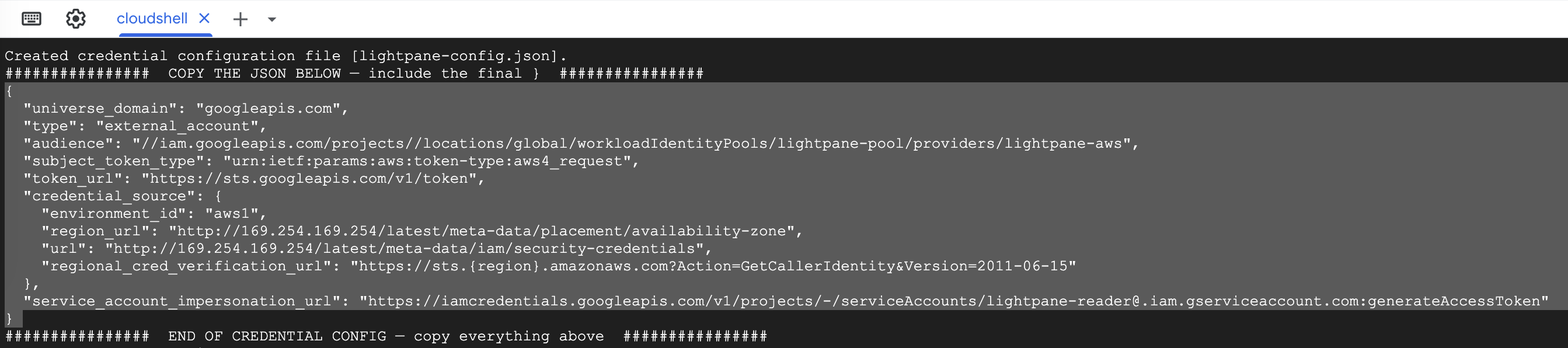
When the script finishes you'll see a JSON block printed in the Cloud Shell window. That's the credential config — the next step is to copy it into LightPane.
First-time Cloud Shell prompts
The first time you run a gcloud command in a new Cloud Shell
session you may be asked to confirm "Authorize Cloud Shell" — say
Authorize. The script may also prompt to enable APIs ("API [X]
not enabled on project. Would you like to enable and retry?") —
answer y. After APIs are enabled the rest of the script runs
without further prompts.
Step 4: Paste the credential config into LightPane
- In Cloud Shell, the final
cat lightpane-config.jsonprinted the credential config JSON. Select the entire JSON block (from the opening{to the closing}) and copy it (be careful to include the final } bracket when copying).
- Switch back to the LightPane tab from Step 1.
- Paste the JSON into the WIF Credential Configuration field.
- Enter your Project ID in the matching field. This is the
PROJECT_IDyou saw in Cloud Shell — it's also the value shown in the project selector at the top of the GCP console. - (Optional) Enter a Display name if you want to label this project differently from the project ID in the LightPane UI.
- Pick a Default region (e.g.
europe-west2,us-central1). LightPane will use this as the default for new GCP panes bound to this project. - Click Save.
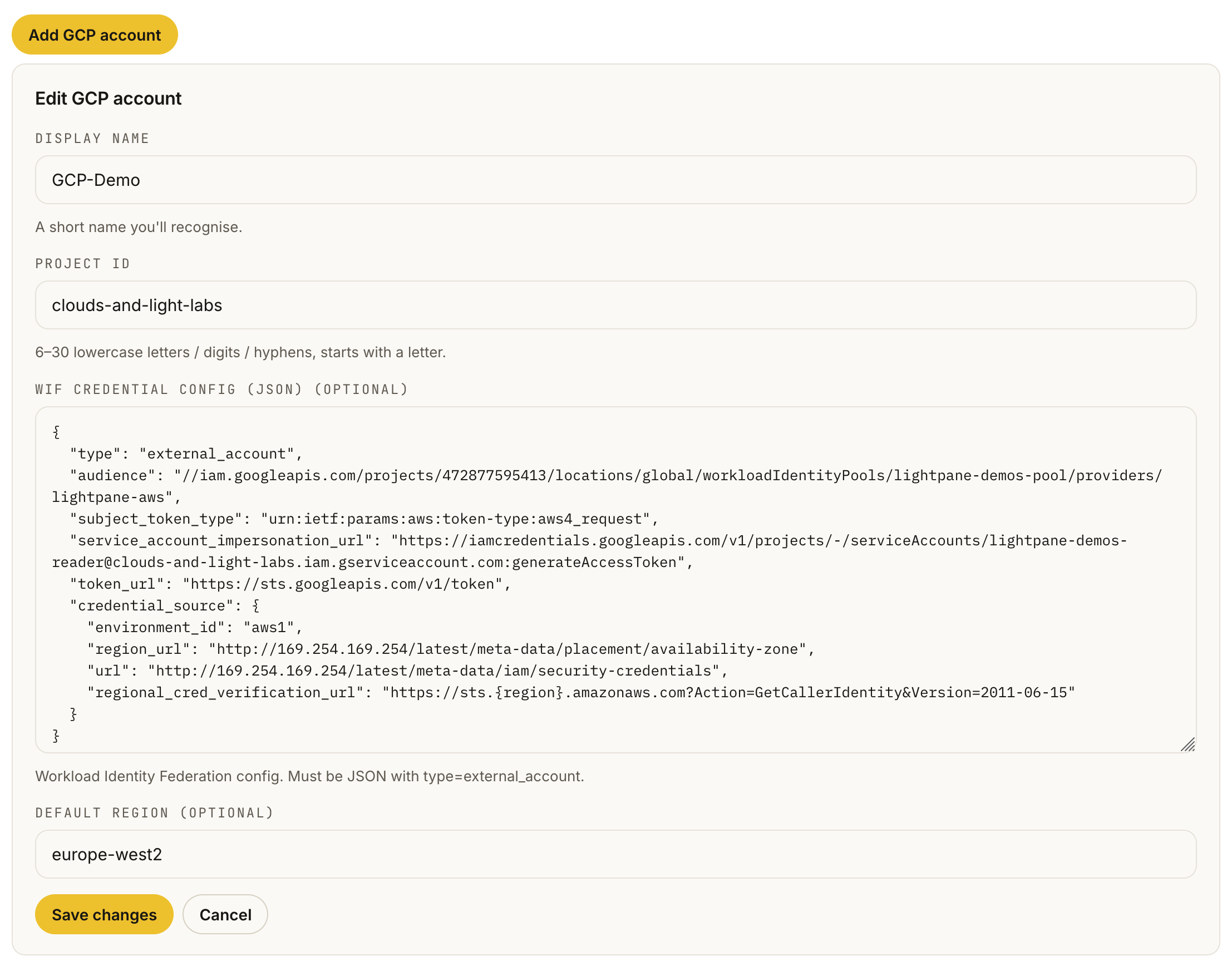
LightPane performs a quick test call (exchanging the AWS identity for a GCP token and listing service accounts) to confirm the credentials work. If anything's off, you'll see a specific error pointing at which step to re-check.
The credential config file (what's in it)
The JSON output contains identifiers and endpoint URLs only — no private keys or secrets:
{
    "type": "external_account",
    "audience": "//iam.googleapis.com/projects/123456789/locations/global/workloadIdentityPools/lightpane-pool/providers/lightpane-aws",
    "subject_token_type": "urn:ietf:params:aws:token-type:aws4_request",
    "service_account_impersonation_url": "https://iamcredentials.googleapis.com/v1/projects/-/serviceAccounts/lightpane-reader@my-project.iam.gserviceaccount.com:generateAccessToken",
    "token_url": "https://sts.googleapis.com/v1/token",
    "credential_source": {
        "environment_id": "aws1",
        "region_url": "http://169.254.169.254/latest/meta-data/placement/availability-zone",
        "url": "http://169.254.169.254/latest/meta-data/iam/security-credentials",
        "regional_cred_verification_url": "https://sts.{region}.amazonaws.com?Action=GetCallerIdentity&Version=2011-06-15"
    }
}
This file is not sensitive
If the credential config is exposed, an attacker would also need valid AWS credentials for the LightPane platform account to use it. The file alone grants no access. The principalSet binding in Step 3 #6 restricts the federated identity to the LightPane AWS account only.
Setup checklist
Before you head to the dashboard, confirm:
- [ ] You can sign in to the GCP console and see your project
- [ ] You ran the setup script in Cloud Shell without errors
- [ ] You copied the credential config JSON from the Cloud Shell output
- [ ] You added the project to your LightPane profile via app.lightpane.io/accounts.html (Project ID + JSON pasted)
- [ ] LightPane's save action returned a success message (not an authentication error)
If all of these are ticked, your GCP project is wired into LightPane and the GCP panes will start showing live data on your next dashboard or Cloud Desktop load.
Fallback: service account key
No secrets stored. Short-lived tokens. Google's recommended approach and the default in this guide.
If you cannot set up WIF (e.g. the
iam.disableServiceAccountKeyCreation org policy blocks it and
you can't get an exception), you can create a service account
key instead:
- In the GCP console, go to IAM & Admin > Service Accounts.
- Create a new service account named
lightpane-reader. - Grant it the
roles/viewerrole at the project level. - Open the new service account, go to the Keys tab, click Add Key > Create new key, select JSON, and save the downloaded file.
- Paste the JSON content into LightPane's WIF Credential
Configuration field (the form accepts either WIF configs
or service-account-key JSONs and detects which is which by
the
typefield).
{
    "type": "service_account",
    "project_id": "my-project-123",
    "private_key_id": "key123abc",
    "private_key": "-----BEGIN RSA PRIVATE KEY-----\n...\n-----END RSA PRIVATE KEY-----\n",
    "client_email": "lightpane-reader@my-project-123.iam.gserviceaccount.com",
    ...
}
Service account keys are long-lived secrets
The JSON key file contains a private key that never expires. LightPane stores it encrypted, but WIF avoids this entirely. Use WIF unless you have a specific reason not to.
Note: GCP organisations created after May 2024 block service
account key creation by default. You may need an organisation
policy administrator to grant an exception to the
iam.disableServiceAccountKeyCreation constraint on your
project before this fallback works.
Required GCP APIs
These APIs must be enabled in your project for WIF discovery to work:
- IAM API (
iam.googleapis.com) - IAM Credentials API (
iamcredentials.googleapis.com) - Security Token Service API (
sts.googleapis.com) - Cloud Resource Manager API (
cloudresourcemanager.googleapis.com)
The setup script in Step 3 enables all four automatically. Individual
panes may also depend on the API for the specific service they
discover (e.g. Cloud Tasks needs cloudtasks.googleapis.com); if a
required API isn't enabled, the pane renders a friendly empty state
with the gcloud services enable … command to fix it, rather than a
generic error.
Supported regions
LightPane discovers resources in any GCP region. Common regions:
| Region | Location |
|---|---|
europe-west2 |
London |
europe-west1 |
Belgium |
europe-west3 |
Frankfurt |
us-central1 |
Iowa |
us-east1 |
South Carolina |
us-west1 |
Oregon |
asia-southeast1 |
Singapore |
asia-northeast1 |
Tokyo |
Some services are global (Cloud DNS zones, IAM service accounts, Cloud Storage at the project level) and ignore the region selector. Others are per-region and respect it. The pane header shows which region the data came from.
Multiple projects
LightPane supports more than one GCP project per user account. Each
project is registered as its own row in your profile — link each one
separately by repeating Steps 1-4 (you can reuse the same setup
script in each project's Cloud Shell, since the script uses
gcloud config get-value project and runs against whichever project
Cloud Shell is currently scoped to).
In the Cloud Desktop and dashboard, every GCP pane shows an account selector chip so you can retarget it at a different project on the fly. Different windows can be bound to different projects simultaneously — useful for side-by-side production vs staging comparison.
Cost data (connect a BigQuery billing export)
Cost panes are in early access
The GCP cost panes (Cost Summary, Cost Forecast, Cost by Label) are rolling out. The steps below set up the GCP side; once your export is flowing, email support@cloudsandlight.com with your project ID and we'll switch the cost panes to live data for your project.
Unlike AWS (Cost Explorer) and Azure (Cost Management), GCP has no real-time spend API. The Cloud Billing API only returns billing-account metadata and the price catalogue — not what you actually spent. Google's supported way to read incurred cost programmatically is to export billing data to BigQuery and query it there. LightPane reads that export (read-only) to populate the GCP cost panes:
- Cost Summary — today, month-to-date and forecast, broken down by service
- Cost Forecast — projected month-end spend
- Cost by Label — spend grouped by your resource labels
- the cost block in the GCP Daily Briefing
This is a one-time setup with three parts: create a dataset to receive
the export, enable the export, and grant the lightpane-reader service
account read access. It assumes you've already linked the project
(Steps 1–4 above), so lightpane-reader exists.
1. Create a dataset to receive the export
Create a BigQuery dataset in the project LightPane reads. Queries against the export run in the dataset's location, so keep it close to your default region:
export PROJECT_ID=$(gcloud config get-value project)

gcloud services enable bigquery.googleapis.com --project="$PROJECT_ID"

bq --location=europe-west2 mk --dataset \
  --description "Cloud Billing export for LightPane" \
  "$PROJECT_ID:billing_export"
2. Enable the billing export (Console)
This step is Console-only
Enabling Cloud Billing export to BigQuery is not available via
gcloud or the API — it has to be done in the Console, and you'll
need the Billing Account Administrator role on the billing
account (it's a billing-account setting, not a project one).
- Go to Billing → Billing export → BigQuery export.
- Under Standard usage cost, click Edit settings.
- Set Project to the project from Step 1 and Dataset to
billing_export, then Save.
Standard usage cost covers every LightPane cost pane. You can also enable Detailed usage cost (per-resource cost) if you want it, but it isn't required.
The export is not retroactive
Billing export only captures data from the moment you enable it — there's no backfill of past spend. Data lands within a few hours and is restated as the month finalises, so enable it as early as you can.
3. Grant lightpane-reader read access to the export
The lightpane-reader service account from the WIF setup has
roles/viewer, which deliberately cannot read BigQuery rows. Grant
it two scoped roles — read the export dataset, and run query jobs:
SA_EMAIL="lightpane-reader@$PROJECT_ID.iam.gserviceaccount.com"

# Preflight — lightpane-reader is created by the Link (WIF) setup above, so
# these grants assume it already exists. If it doesn't, link the project first.
# (if/else, not exit — so this can't close your Cloud Shell.)
if ! gcloud iam service-accounts describe "$SA_EMAIL" >/dev/null 2>&1; then
  echo "❌ $SA_EMAIL not found — run the Link (Workload Identity) setup for this project first, then retry."
else
  # (a) Read the export rows — dataset-scoped (least privilege).
  bq show --format=prettyjson "$PROJECT_ID:billing_export" > /tmp/ds.json
  jq --arg sa "$SA_EMAIL" \
     '.access += [{"role":"READER","userByEmail":$sa}]' /tmp/ds.json > /tmp/ds-new.json
  bq update --source /tmp/ds-new.json "$PROJECT_ID:billing_export"

  # (b) Run query jobs — project-scoped (jobUser can't be dataset-scoped).
  gcloud projects add-iam-policy-binding "$PROJECT_ID" \
    --member="serviceAccount:$SA_EMAIL" --role="roles/bigquery.jobUser"
fi
bq add-iam-policy-binding may fail with 'requires allowlisting'
The newer bq add-iam-policy-binding command for dataset
resources isn't generally available yet and returns "This feature
requires allowlisting." Use the bq update ACL method in (a)
instead — in a dataset ACL, READER is equivalent to
roles/bigquery.dataViewer.
Verify
After a few hours a table named gcp_billing_export_v1_<BILLING_ACCOUNT_ID>
appears in the dataset (the billing-account ID has its dashes turned into
underscores):
Once data has landed you can sanity-check net spend by service. Note that
net cost is cost + credits — credits (committed-use discounts, free
tier, promotions) live in a nested credits array and have to be added
back, which is the most common GCP-cost gotcha:
bq query --use_legacy_sql=false --location=europe-west2 '
SELECT service.description AS service,
       ROUND(SUM(cost)
             + SUM(IFNULL((SELECT SUM(c.amount) FROM UNNEST(credits) c), 0)), 2) AS net_usd
FROM `your-project.billing_export.gcp_billing_export_v1_XXXXXX_XXXXXX_XXXXXX`
WHERE usage_start_time >= TIMESTAMP_SUB(CURRENT_TIMESTAMP(), INTERVAL 30 DAY)
GROUP BY 1 ORDER BY 2 DESC'
Revoking access
To remove LightPane's access:
- Quickest: Delete the
lightpane-readerservice account in GCP (IAM & Admin → Service Accounts →lightpane-reader→ Delete). LightPane loses access immediately. - Or: Delete the Workload Identity Pool (IAM & Admin →
Workload Identity Federation →
lightpane-pool→ Delete). This revokes the federation in addition to the service account trust. -
Or (gcloud):
-
And: In LightPane, go to Cloud accounts and click Remove on the GCP project row to delete the stored credential config.
Troubleshooting
Permission 'iam.serviceAccounts.getAccessToken' denied
Almost always caused by a missing --attribute-mapping on the
AWS provider. Recent gcloud versions don't auto-populate a
default mapping, so the principalSet binding silently resolves to
nothing.
Fix:
gcloud iam workload-identity-pools providers update-aws lightpane-aws \
  --location=global \
  --workload-identity-pool=lightpane-pool \
  --attribute-mapping="google.subject=assertion.arn,attribute.aws_account=assertion.account"
Verify with:
gcloud iam workload-identity-pools providers describe lightpane-aws \
  --location=global \
  --workload-identity-pool=lightpane-pool \
  --format=json
The output should include an attributeMapping field with both
keys above populated. If the field is missing or empty, the
update command above hasn't taken effect yet.
A pane shows '… API has not been enabled'
Individual GCP services need their own API enabled even after the
four WIF APIs are on. LightPane detects this and renders the
gcloud services enable command for the specific API. For
example, Cloud Tasks panes won't return data until you run:
You can enable several at once if you know which panes you'll use. The full set covering all 29 GCP panes is:
gcloud services enable \
  compute.googleapis.com \
  container.googleapis.com \
  run.googleapis.com \
  cloudfunctions.googleapis.com \
  cloudscheduler.googleapis.com \
  cloudtasks.googleapis.com \
  pubsub.googleapis.com \
  storage.googleapis.com \
  file.googleapis.com \
  artifactregistry.googleapis.com \
  bigquery.googleapis.com \
  bigtableadmin.googleapis.com \
  firestore.googleapis.com \
  sqladmin.googleapis.com \
  redis.googleapis.com \
  dns.googleapis.com \
  cloudkms.googleapis.com \
  secretmanager.googleapis.com \
  --project=$PROJECT_ID
You don't need to enable everything up-front — LightPane will tell you which API is missing the first time you load each pane.
The setup script asks me to authorise Cloud Shell
Normal. Cloud Shell needs explicit consent the first time you use it in a project — accept the prompt and the script continues.
Cost panes show no data after connecting a billing export
A few things to check, in order:
- Give it a few hours. Billing export is not retroactive and
lands with a delay — a freshly enabled export has no table yet.
Confirm the table exists with
bq ls $PROJECT_ID:billing_export. - Check the read grant.
roles/vieweralone cannot read BigQuery rows. Thelightpane-readerSA needsREADERon thebilling_exportdataset androles/bigquery.jobUseron the project — see Cost data step 3. - Confirm the export is the Standard usage cost type, written to the dataset you told LightPane about.
- If the table exists, the grants are in place, and a manual
bq queryreturns rows but the panes are still empty, email support@cloudsandlight.com with your project ID — cost panes are in early access and we enable them per project.
Cannot create a Workload Identity Pool
You need the Workload Identity Pool Admin (roles/iam.workloadIdentityPoolAdmin)
or Owner role on the project. Ask whoever administers the
project to either run the script themselves or grant you the
role.
If you see "Identity Pool Federation API has not been used in project …", run the enable step (1 in the script) first and re-run the create step.
Setup ran but LightPane still shows 'no GCP projects configured'
Check that:
- You saved the credential config JSON in the LightPane dialogue (Step 4) — without that, the project record was never created.
- The Project ID in LightPane matches the
PROJECT_IDthe script ran against. They have to be identical strings — the project number (e.g.472877595413) is not the same as the project ID (e.g.my-project-123). - LightPane returned a success message when you clicked Save (no red error banner). If it errored, the credentials weren't stored.
Service account key creation blocked by org policy
If you're trying the service-account-key fallback and see "Service account key creation is disabled", your org policy blocks it (default for GCP orgs created after May 2024). Options:
- Ask an org policy administrator to exclude this project from
the
iam.disableServiceAccountKeyCreationconstraint. - Or — much better — use the WIF path (Steps 1-4 above), which doesn't need keys at all.
Getting help
If you hit anything not covered here, email support@cloudsandlight.com — we'll either talk you through it or fix the doc. Open-tickets are easier to chase than email; we'll be opening a support portal shortly.