Azure Setup
Azure support is in early access
Azure discovery covers 20 services today (Virtual Machines, App Services, Functions, AKS, ACR, VNets, NSGs, Load Balancers, Storage Accounts, Managed Disks, SQL, Cosmos, Event Hubs, Service Bus, Key Vaults, DNS Zones, Monitor Alerts, and more). Full parity with the AWS catalogue is on the roadmap.
LightPane connects to your Azure subscription using a Service Principal (also called an App Registration) with the built-in Reader role. This grants read-only access to your resource configuration and metadata — never to the data stored inside those resources, and never to anything that could modify them.
What you'll need
- An Azure subscription you can manage (you'll need permission to create App Registrations and assign roles on the subscription).
- 5-10 minutes in the Azure portal.
- The ability to copy four values from Azure into your LightPane profile: Subscription ID, Tenant ID, Client ID, and a one-time-visible Client Secret.
If you don't have an Azure subscription yet, sign up at azure.microsoft.com — the Microsoft Free Tier covers everything LightPane needs to read.
How it works
LightPane authenticates as a dedicated service principal in your
Azure tenant. That principal is granted the built-in Reader role,
scoped to a single subscription you choose. When you load a pane,
LightPane reads the relevant Azure REST APIs (management.azure.com,
graph.microsoft.com) using a short-lived OAuth2 token derived from
the service principal's client credentials, and renders the response.
Nothing is written; nothing outside the chosen subscription can be
read.
What can be accessed
The Reader role provides read-only access to resource configuration in your subscription:
- Virtual machines, App Services, Functions, AKS clusters, container registries
- Storage accounts, managed disks (configuration only — never the blobs, containers, or file shares inside them)
- SQL servers, SQL databases, Cosmos DB accounts (configuration only — never row contents)
- Virtual networks, subnets, network security groups, load balancers, public IPs, DNS zones
- Event Hubs, Service Bus, Monitor alerts, Key Vault metadata
- Role assignments + access control settings (for verifying setup)
- Cost & usage totals via Azure Cost Management (aggregate spend only — see Cost data; no extra setup, unlike GCP)
What CANNOT be accessed
- Cannot modify, create, or delete any resource
- Cannot read storage data, blobs, queues, tables, or files
- Cannot read database row contents
- Cannot read Key Vault secrets, keys, or certificates (only the vault's existence and access policies)
- Cannot perform any write or management operation
- Cannot access resources in any subscription other than the one you assigned the role on
Step 1: Create an App Registration
This is the service identity in your Microsoft Entra ID tenant that LightPane will authenticate as.
- Sign in to the Azure portal.
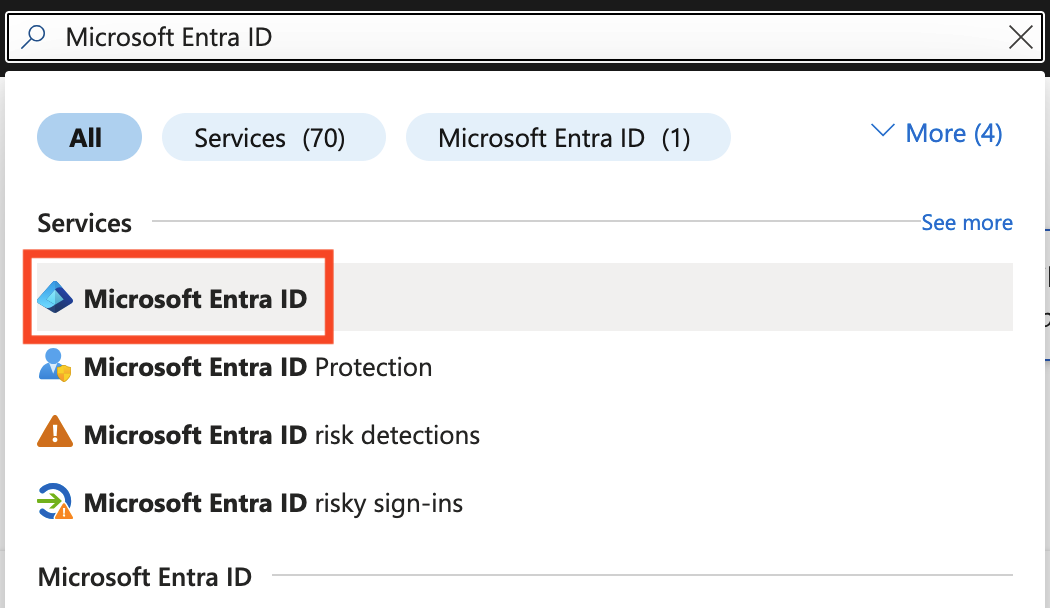
- In the search bar at the top, type Microsoft Entra ID and select the matching result.
- In the left-hand menu, expand Manage and click App registrations. (Manage is collapsed by default, so App registrations isn't visible until you expand it.)
- Click + New registration at the top of the page.

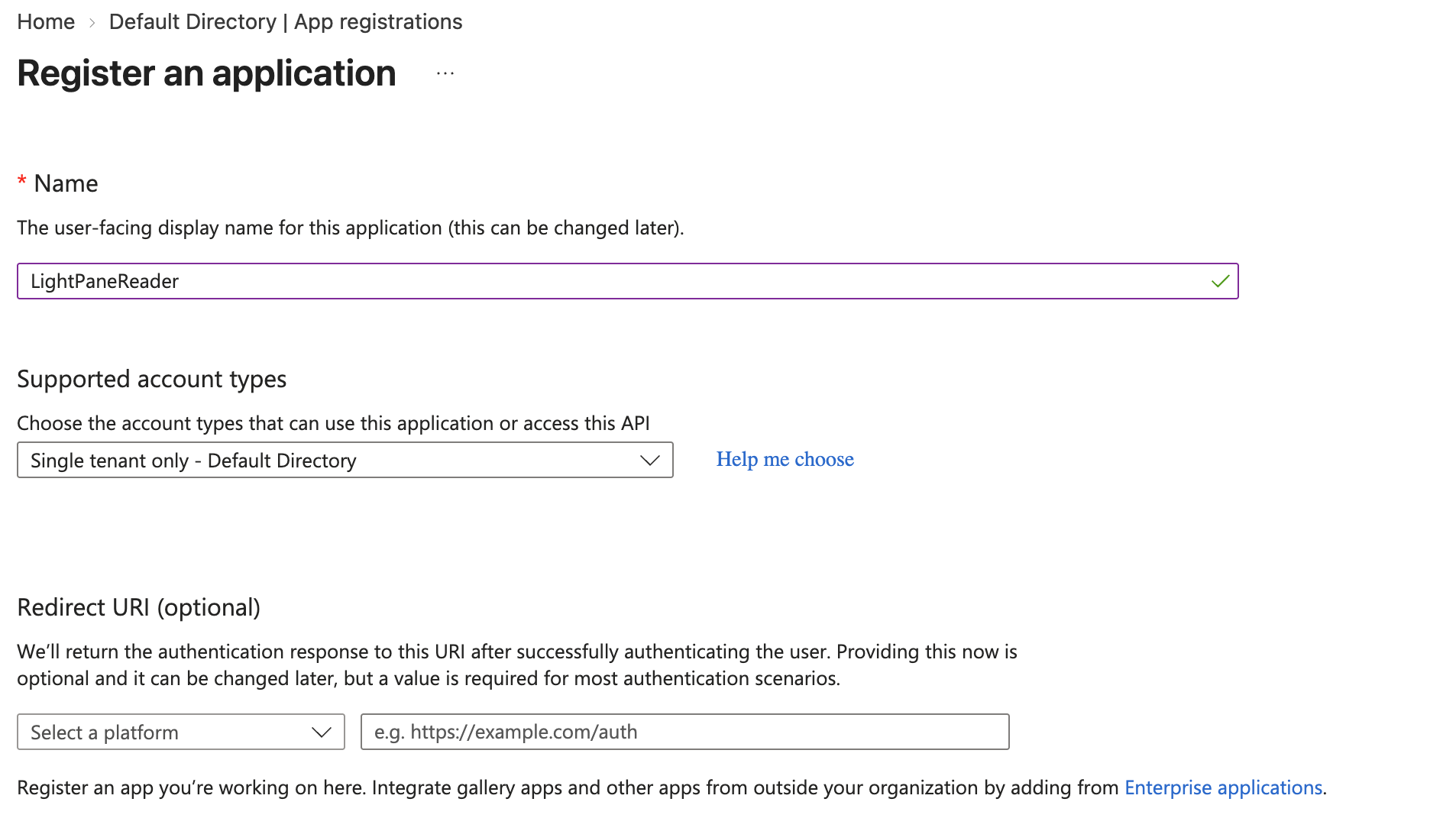
- Fill in the registration form:
- Name:
LightPaneReader - Supported account types: the single-tenant option. It carries your directory's name — Single tenant only - <your directory> — so on a new tenant it reads Single tenant only - Default Directory.
- Redirect URI: leave blank
- Name:
- Click Register at the bottom of the page (easy to miss on a large monitor — it's below the fold of the form, not beside it).
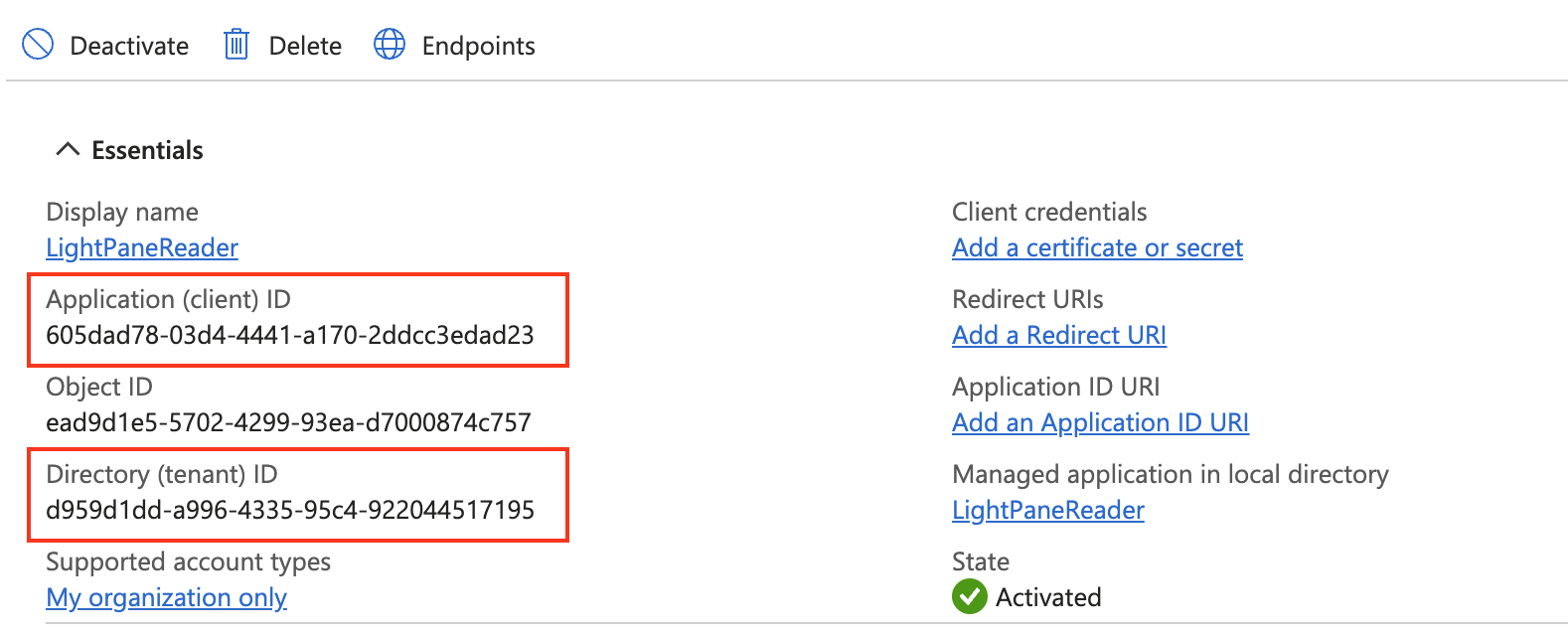
- You'll land on the app registration's Overview page. Take note of
these two values — you'll need them in Step 4:
- Application (client) ID — a GUID identifying this app registration
- Directory (tenant) ID — the same as your Azure tenant ID
Copy GUIDs, don't retype them
Hovering over a value in the portal reveals a one-click copy button at the end of it. It only appears on hover, so it's easy to miss — but a GUID with one wrong character fails later, at role assignment, a long way from the typo.
Step 2: Create a Client Secret
The client secret is the password that lets LightPane authenticate as this service principal. You must create one and copy it immediately — Azure displays the value once and never again.
- On the LightPaneReader app registration page, expand Manage in the left-hand menu and click Certificates & secrets.
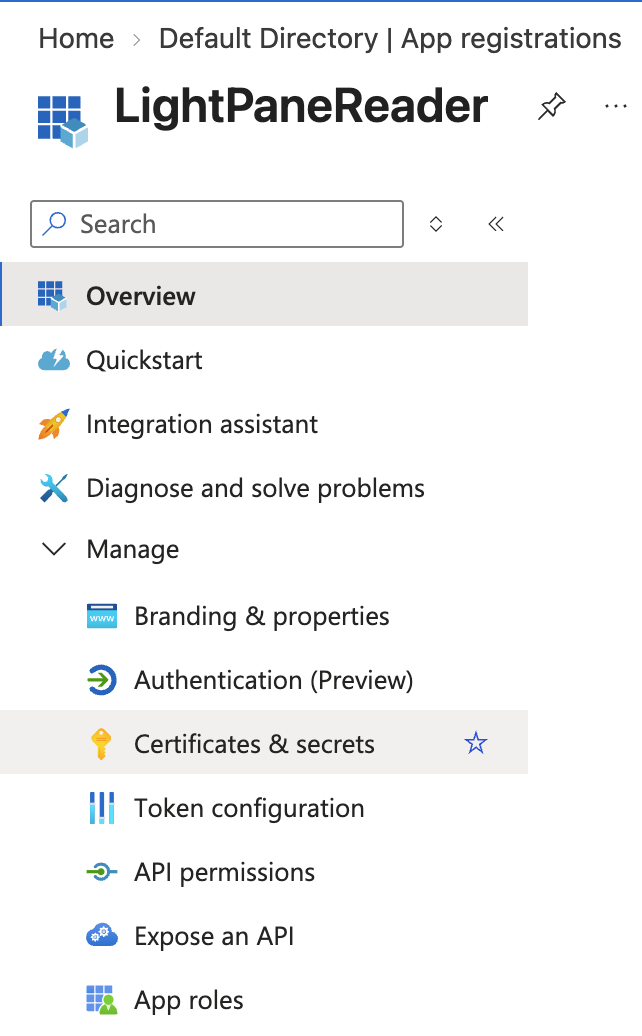
- Click + New client secret.
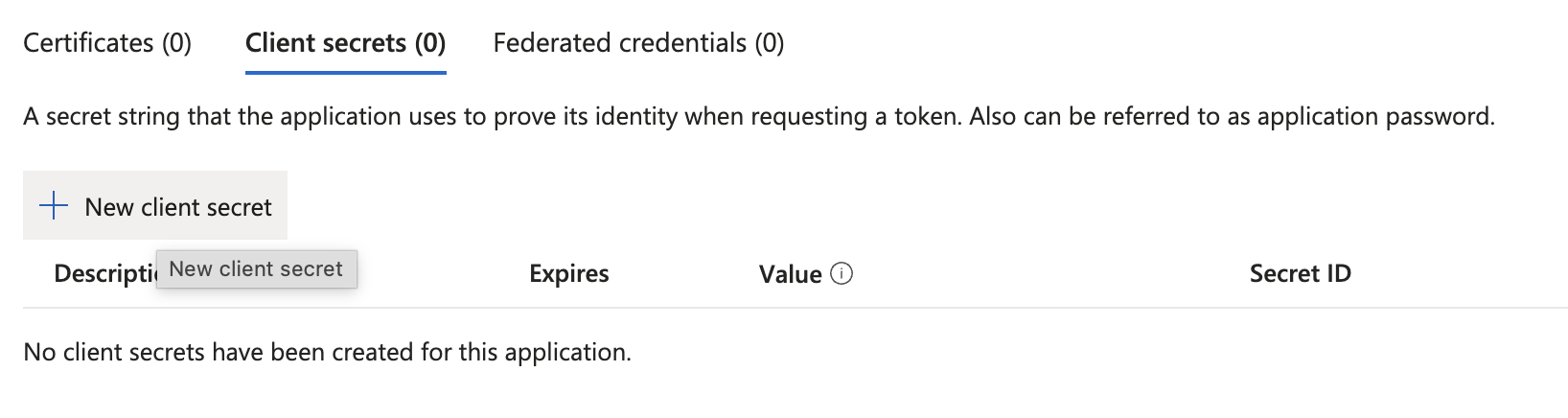
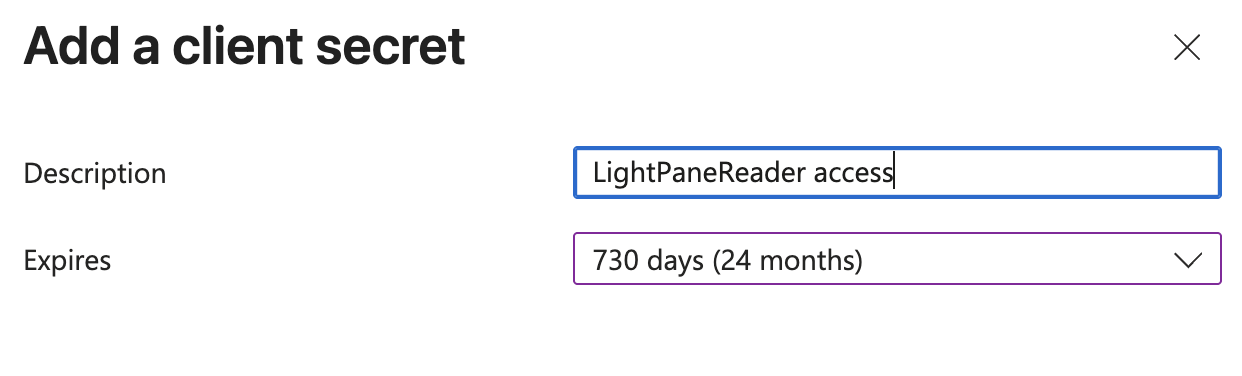
- A panel opens on the right. Fill it in:
- Description:
LightPaneReader access - Expires:
730 days (24 months)— the maximum Azure allows.
- Description:
- Click Add at the bottom of the panel.
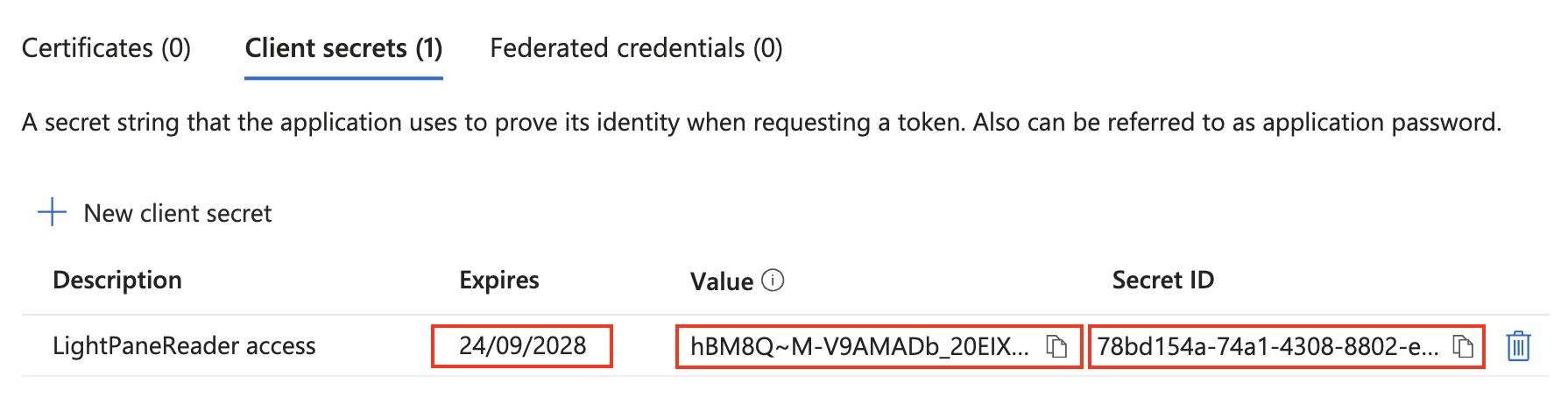
Copy your client secret immediately
Once you click Add, the secret's Value appears for the first and only time. Click the copy icon next to Value and paste it into a secure note now. The Secret ID in the next column is not the value you need — make sure you copy the Value.
If you lose the value, you can't recover it; you'll have to delete the secret and create a new one.
-
Record all three of these from the new row — you'll enter each one into LightPane in Step 5:
Column What it's for Value The secret itself. One-time visible. Secret ID Identifies which secret you gave us. Not sensitive. Expires So LightPane can warn you before it lapses.
Why we ask for the Secret ID and expiry
An app registration can hold several client secrets at once. If we
store only the value, then when one expires — and authentication
starts failing with AADSTS7000215 — we can't tell you which of
your secrets to replace. The Secret ID and expiry are both on
screen at the one moment they cost nothing to capture, so LightPane
asks for them now and warns you ahead of the expiry date instead of
after it. Neither is sensitive.
Step 3: Assign the Reader Role on Your Subscription
Now grant the app registration read-only access to your subscription via Azure's Role-Based Access Control (RBAC).
- In the Azure portal, search for Subscriptions and select it.
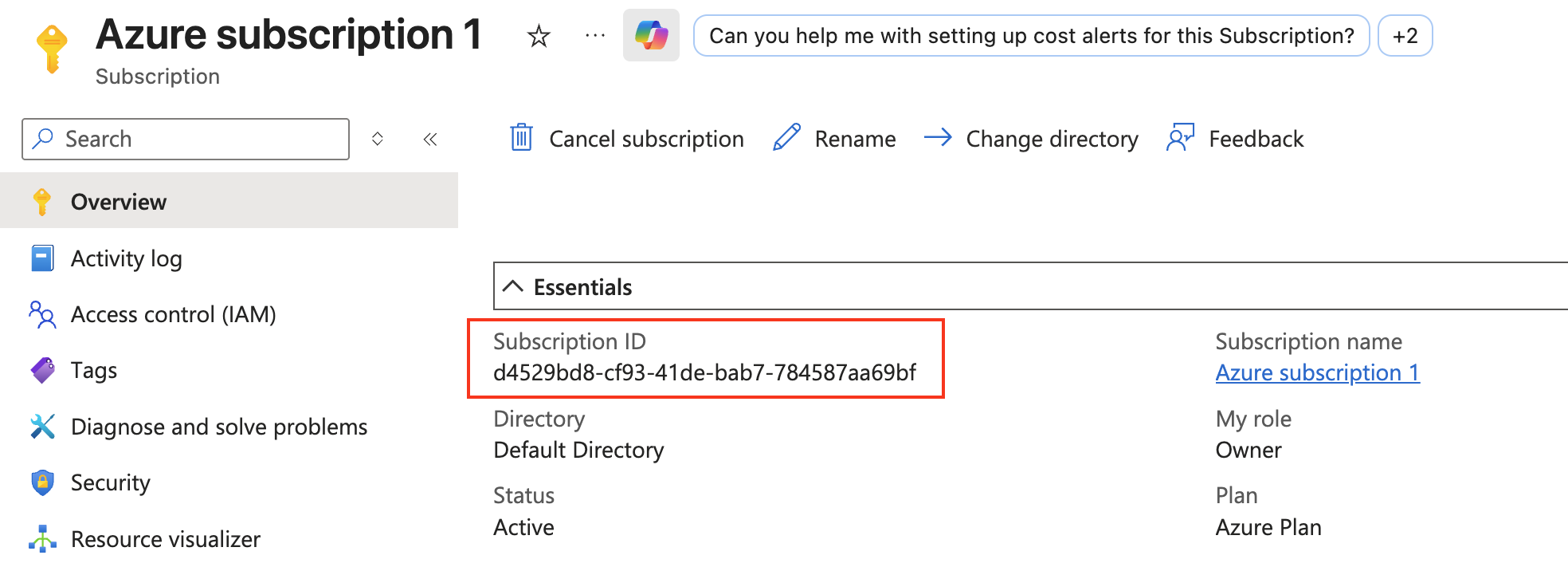
- Click the subscription you want LightPane to read. If you only have one, it may still be carrying the default name Azure gave it — e.g. Azure subscription 1.
- On the subscription's Overview page, copy the Subscription ID — you'll need it in Step 5.
- In the left-hand menu, click Access control (IAM).
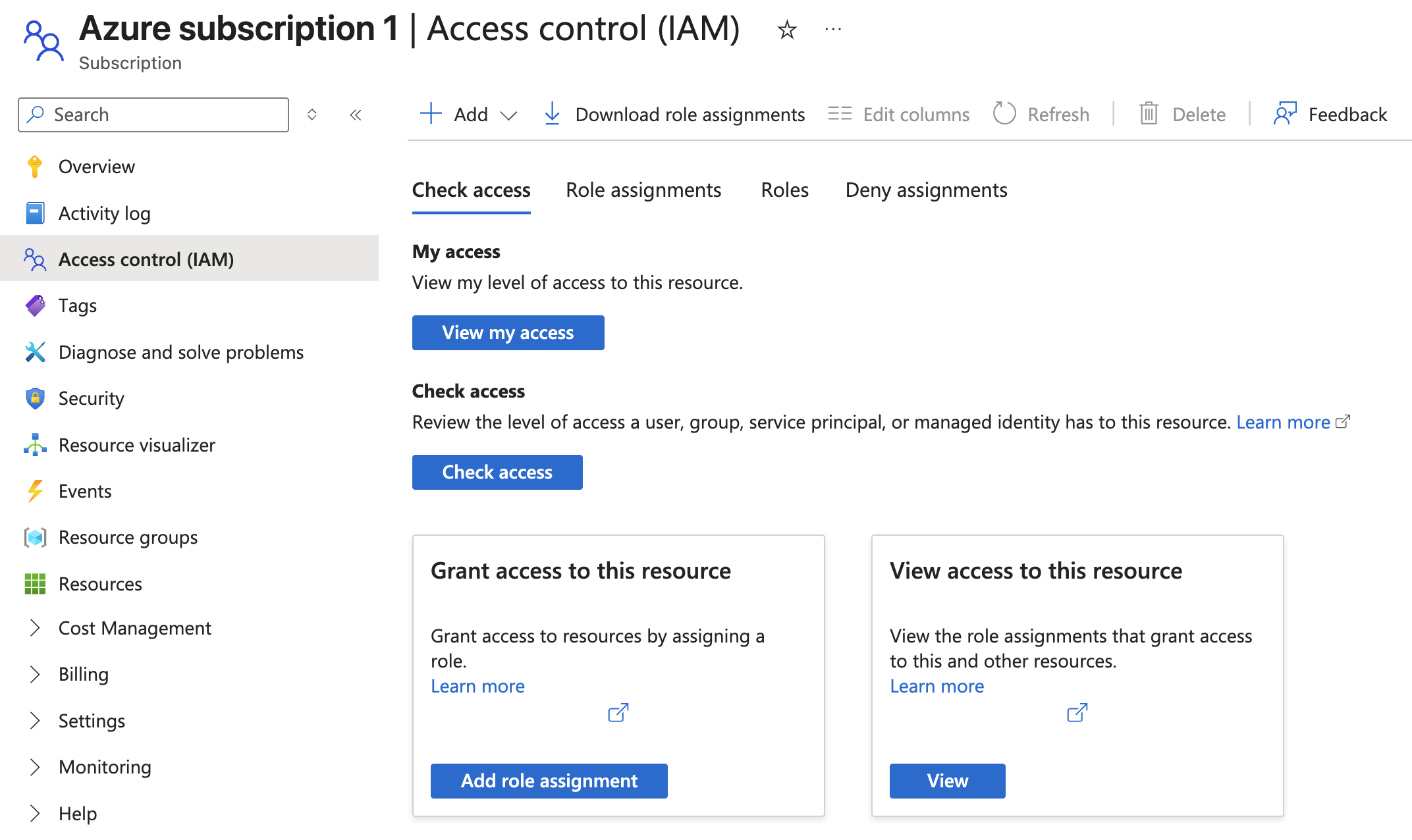
- Click + Add at the top, then Add role assignment.
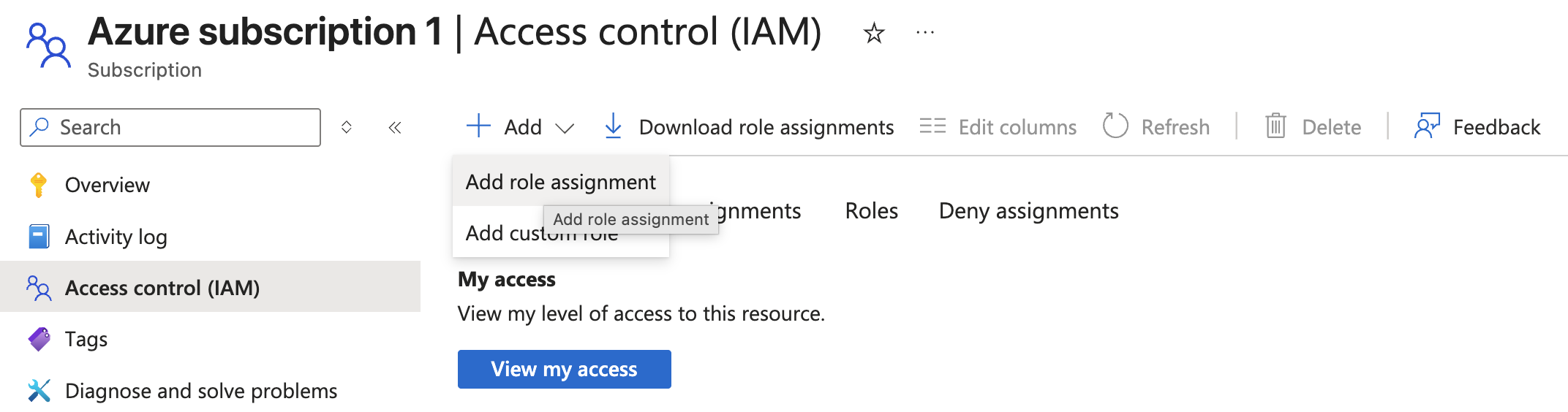
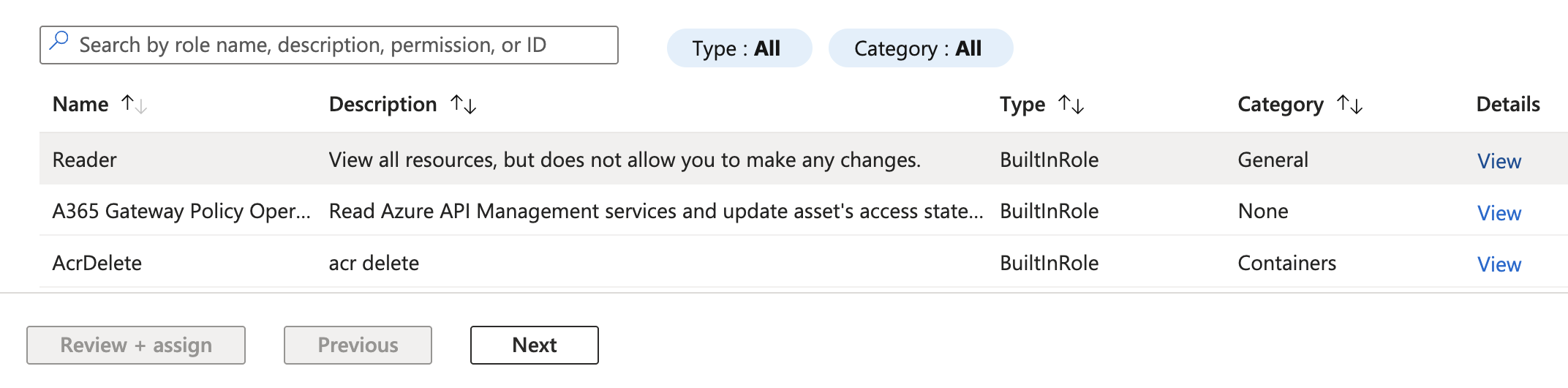
- On the Role tab, search for
Readerand click the built-in Reader role (described as "View all resources, but does not allow you to make any changes") so the row highlights. There are no checkboxes here — the row simply darkens when it's selected. - Click Next at the bottom of the page.
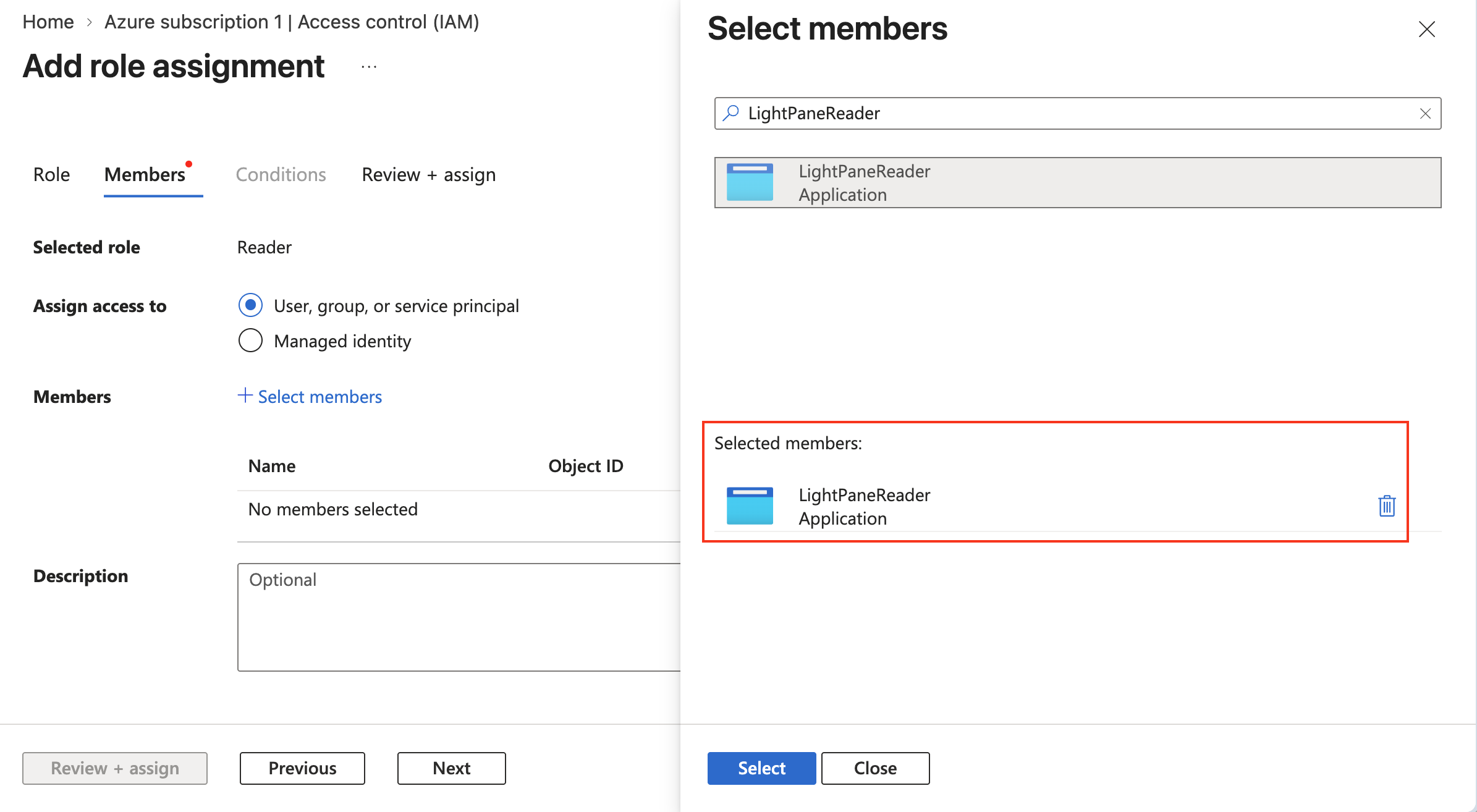
- On the Members tab, set Assign access to → User, group, or service principal.
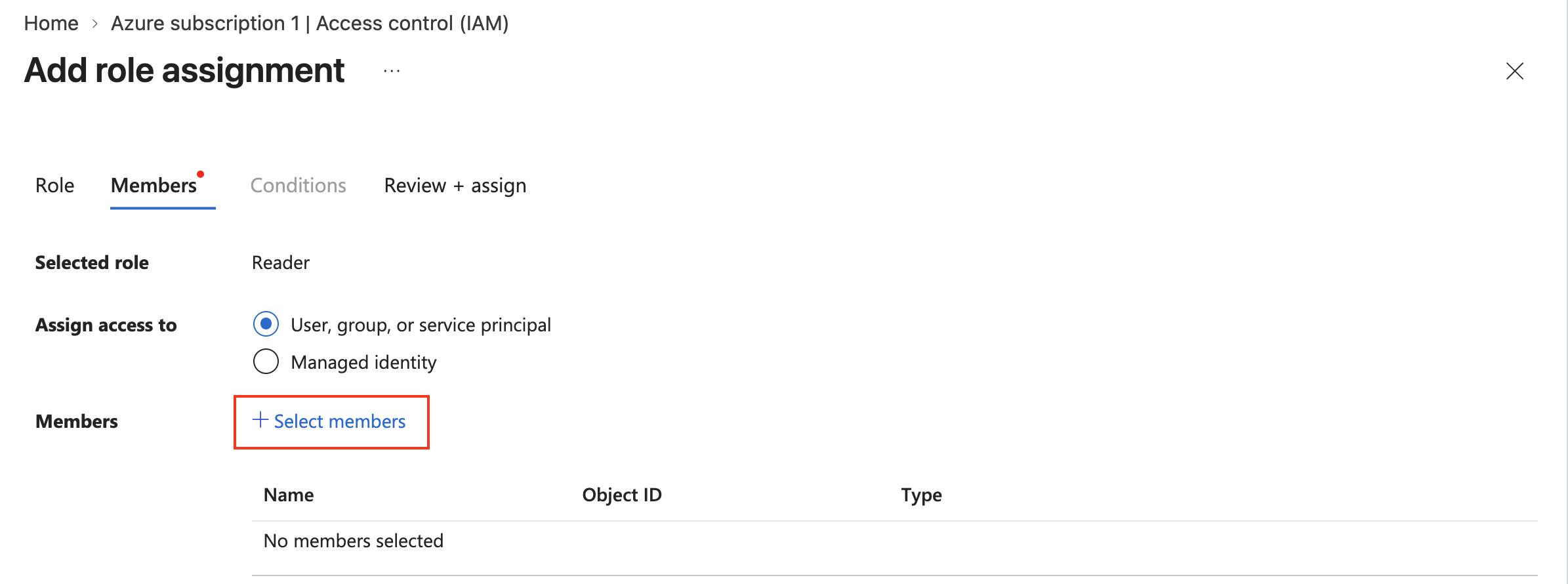
- Click + Select members to open the selection panel.
- Search for
LightPaneReaderand click it, so that it appears under Selected members. Then click Select.
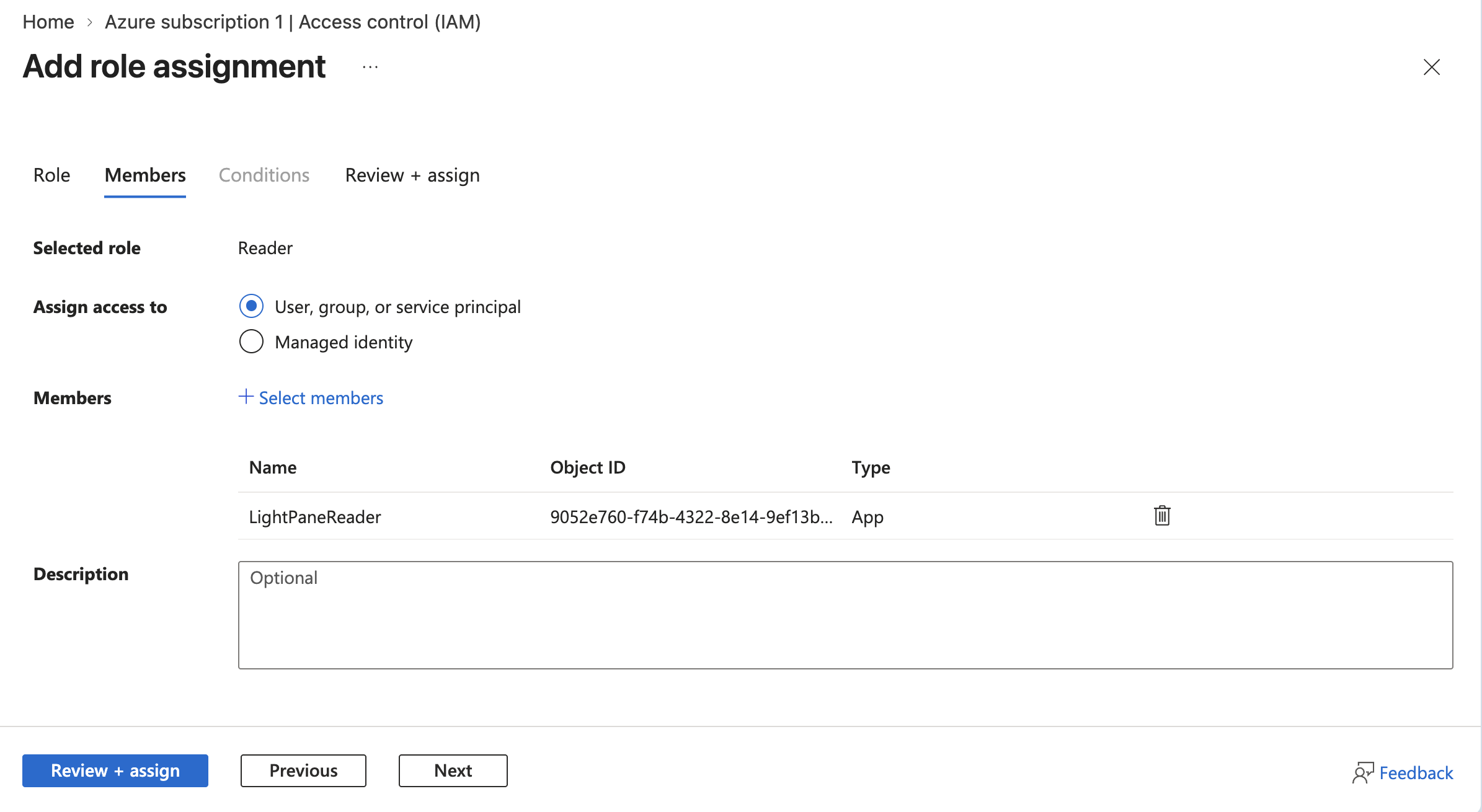
- You'll now see
LightPaneReaderlisted under Members. Click Review + assign at the bottom of the page to apply the role assignment. Azure returns you to Access control (IAM).
Role assignment complete
LightPaneReader now has read-only access to your subscription. You can verify this by going back to Access control (IAM) on your subscription and clicking the Role assignments tab — you should see LightPaneReader listed under Reader.
Step 4: Collect the Values
You'll need six values to enter into LightPane — four from the Azure portal, plus the client secret and its details from Step 2.
| Value | Where to find it |
|---|---|
| Subscription ID | Subscriptions page → click your subscription → copy the Subscription ID shown in the Overview. Format: a1b2c3d4-e5f6-7890-abcd-ef1234567890 |
| Tenant ID | Microsoft Entra ID → Overview → Tenant ID. Same as the Directory (tenant) ID on your app registration's Overview page. |
| Client ID | The Application (client) ID on the LightPaneReader app registration's Overview page (from Step 1). |
| Client Secret | The Value you copied in Step 2. If you've lost it, return to Certificates & secrets, delete the old secret, and create a new one. |
| Secret ID | The Secret ID column beside that Value, in Certificates & secrets. Still visible after the fact — unlike the Value. |
| Secret expiry | The date in the Expires column for that same secret. |
Shortcut with the Azure CLI
If you prefer the command line, the same values are available via
az:
# Subscription + tenant for the currently-signed-in context
az account show --query '{subscription_id:id, tenant_id:tenantId}' -o table

# Create an App Registration + Reader role + client secret in one shot
az ad sp create-for-rbac \
  --name "LightPaneReader" \
  --role "Reader" \
  --scopes "/subscriptions/<YOUR_SUBSCRIPTION_ID>" \
  --years 2
create-for-rbac prints the client secret in password (one-time
visible, same as the portal) and the client ID in appId. It does
not print the Secret ID or the expiry date, so fetch those
separately — LightPane requires both:
# Secret ID (keyId) and expiry for the app you just created
az ad app credential list --id <appId> \
  --query "[].{secret_id:keyId, expires:endDateTime}" -o table
If the app holds more than one secret, match on endDateTime — the
one furthest in the future is the one you just made.
Step 5: Add to LightPane
- Sign in to app.lightpane.io.
- Go to Cloud accounts, then click Add Azure account. This opens a guided walkthrough that mirrors the steps above — if you've already completed them, just fill in the fields as you go.
- Enter:
- Name — what you'll call this subscription in LightPane
- Application (client) ID
- Directory (tenant) ID
- Client secret — the Value (masked; paste once)
- Secret ID and Secret expires — required, so we can tell you which secret to renew and warn you before it lapses
- Subscription ID
- Default region (e.g.
uksouth,eastus,westeurope) — optional. Panes query it first; leave it blank and each pane that discovers regional resources will let you pick.
- Click Test connection. LightPane signs in as the service principal and confirms it can read the subscription. Role assignments take a moment to propagate, so it retries.
- Once you see ✓ Connected, click Add subscription.
If the test fails you'll get a specific error pointing at which value to re-check, rather than a generic failure.
Keeping your client secret secure
Your client secret is a sensitive credential. Best practice:
- Never share it with anyone or paste it into public forums.
- Don't commit it to version control.
- If you suspect the secret has been compromised, go to App Registrations → LightPaneReader → Certificates & secrets, delete the compromised secret, and create a new one. Update your LightPane profile with the new value — and with its new Secret ID and expiry, so the record stays accurate.
- Because LightPane holds the expiry date, it can warn you before the secret lapses. That's a backstop, not a substitute for your own calendar reminder.
Setup checklist
Before you head to the dashboard, confirm:
- [ ] You can sign in to the Azure portal
- [ ] You have a subscription you can manage
- [ ] You've created the
LightPaneReaderapp registration - [ ] You've created a client secret and copied the Value
- [ ] You've noted that secret's Secret ID and expiry date
- [ ] You've assigned the Reader role on your subscription
- [ ] You've added the subscription to your LightPane profile via app.lightpane.io/accounts.html
If all of these are ticked, your Azure subscription is wired into LightPane and the Azure panes will start showing live data on your next dashboard or Cloud Desktop load.
Multiple subscriptions
LightPane supports more than one Azure subscription per user account. Each subscription is registered as its own row in your profile — link each one separately by repeating Steps 1-5 (you can reuse the same App Registration across subscriptions by assigning the Reader role on each, or create a separate registration per subscription if you'd rather keep them isolated).
In the Cloud Desktop and dashboard, every Azure pane shows an account selector chip so you can retarget it at a different subscription on the fly. Different windows can be bound to different subscriptions simultaneously — useful for side-by-side production vs staging comparison.
Cost data
Cost panes are in early access
The Azure cost panes (Cost Summary, Cost Forecast, Cost by Tag) are rolling out alongside the rest of the early-access Azure support.
Unlike GCP — which needs a BigQuery billing export connected before any
spend is visible — Azure cost works out of the box. The cost panes
read Azure Cost Management directly (the query API on your
subscription), so there is no export to set up. Net cost is reported in
your subscription's billing currency.
In most tenants the Reader role you assigned in Step 3 already covers
cost queries at the subscription scope. If the cost panes render empty
while other panes show data, your tenant restricts Cost Management to a
dedicated role — assign Cost Management Reader to the same
LightPaneReader principal (one-time, read-only):
az role assignment create \
  --assignee "<LightPaneReader application (client) ID>" \
  --role "Cost Management Reader" \
  --scope "/subscriptions/<your-subscription-id>"
No other setup is required — cost figures appear on the next pane load (cost data is cached ~1 h, so allow for that after a role change).
Revoking access
To remove LightPane's access:
- Quickest: In Azure, go to your subscription → Access control (IAM) → Role assignments → find LightPaneReader → Remove. LightPane loses access immediately.
- Or: Delete the LightPaneReader app registration entirely (Microsoft Entra ID → App registrations → LightPaneReader → Delete). This revokes the secret in addition to the role.
- And: In LightPane, go to Cloud accounts and click Remove on the Azure subscription row to delete the stored credentials.
Troubleshooting
Can't create an App Registration
Common causes:
- Your account doesn't have permission to create app registrations in the directory. This is common in organisational tenants where admins restrict it. Contact your Azure administrator to request the Application Developer role, or ask them to create the app registration on your behalf.
- If you're using a personal Microsoft account, you should have a default directory where app registrations work. If you can't see the App registrations menu, double-check you're in Microsoft Entra ID (not a different service).
- Try signing out and back in — permission changes sometimes take a few minutes to propagate.
Role assignment failed
Common causes:
- You need to be an Owner or User Access Administrator on the subscription to assign roles. If you created the subscription yourself you should have Owner by default. If someone else manages the subscription, ask them to assign the Reader role to your LightPaneReader app.
- The app registration may not have fully provisioned yet. Wait a minute or two and retry.
- Make sure you're assigning the role at the subscription level (Subscriptions → your subscription → Access control (IAM)), not at a resource group or individual resource.
- "The client with object id … does not have authorization" usually means your own user doesn't have permission to assign roles on the subscription.
Can't find your Subscription ID or Tenant ID
Try one of:
- Subscription ID: Subscriptions in the Azure portal search bar. If no subscriptions appear, you may need to create one or your account may still be activating.
- Tenant ID: Search for Microsoft Entra ID → Overview. The tenant ID is under Basic information. It's also shown on your app registration's Overview page as Directory (tenant) ID.
- Azure CLI:
az account showprints both. - Multiple directories: if you belong to several tenants, use the directory switcher (top-right of the Azure portal) to make sure you're in the correct one.
Client secret not showing or lost
Client secret values display once, immediately after creation. If you navigated away before copying, the value is gone — Azure has no way to retrieve it.
Fix: go to your app registration → Certificates & secrets, delete the old secret, create a new one, and copy the Value column (not the Secret ID) immediately. Update your LightPane profile with the new value.
Tip: paste the value into a password manager when you first create it so the loss-on-navigate scenario can't repeat.
Authentication errors after saving in LightPane
LightPane's save action does a test call to the Azure REST API. Common failures:
- Invalid client secret: Re-check the Value column on the Certificates & secrets page. If you accidentally copied the Secret ID GUID instead of the Value string, fix that.
- Role assignment hasn't propagated yet: Azure RBAC takes a few seconds to a couple of minutes to propagate. Try saving again in a minute.
- Wrong tenant or client ID: The four GUIDs are all same-format, easy to mix up. Double-check each against the Azure portal field they came from.
Getting help
If you hit anything not covered here, email support@cloudsandlight.com — we'll either talk you through it or fix the doc. Open-tickets are easier to chase than email; we'll be opening a support portal shortly.